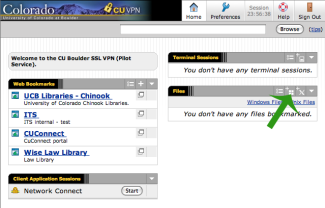
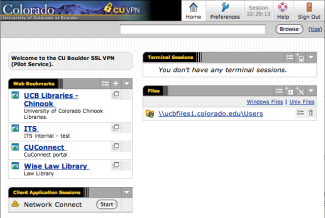
Click on the Windows icon to add a new file share.
Step
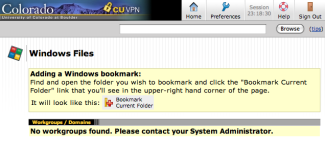
You should see a screen that looks like the screen shot to the left.
Step
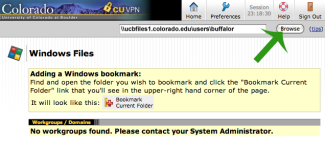
Find the file share you are trying to connect to by entering the server address in the browser bar and click Browse. For example, enter \\ucbfiles1.colorado.edu\ if you are trying to connect to ucbfiles1.colorado.edu
Step
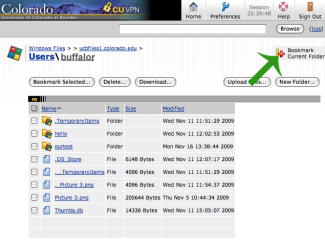
Select the share you want to connect to.
Step
Click on the Bookmark Selected button.
Step
In the window that opens you can change the bookmark name, add a screen shot, etc.. When you have finished making your changes, click on Add Bookmark.
Step
Your Windows file share bookmark will now be listed in the Files section. From that connection, you can upload and download files.