
Step
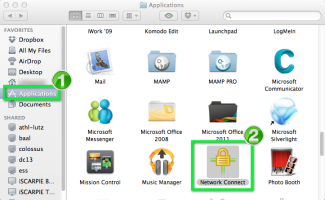
Open a Finder window.

Step
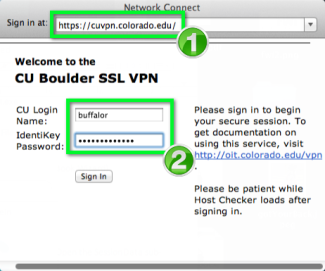
At the Sign In At: text field, make sure it says https://cuvpn.colorado.edu.
Enter your CU Login Name and Identikey Password in the appropriate fields, then click Sign In.

Step


Footer
More about your connection
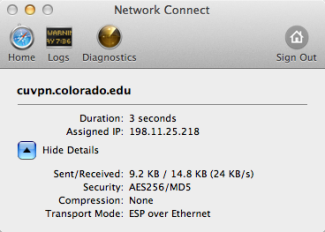
With this standard connection through Network Connect:
- Your network traffic will be routed through CU Boulder.
- You should be able to:
- Access all libraries resources.
- Access file servers.
- SSH, remote desktop, CIFS, NFS.
If you are unable to gain access to an on-campus resource with this connection, talk to the administrator of that resource. Refer them to the help information on the VPN support page.
- You can still access your home networked devices (such as a networked printer).
- Your external traffic (like GMail and Facebook) is routed through CU Boulder as well.
- Please review the following policies:
- Your IP address is located in CU Boulder's public IP space.


